View patch details
|
|
NOTE: Patch management requires a separate KACE Cloud Secure license for devices managed with a Modern or Co-Managed subscription, while it is included for devices managed with a Companion Edition subscription. |
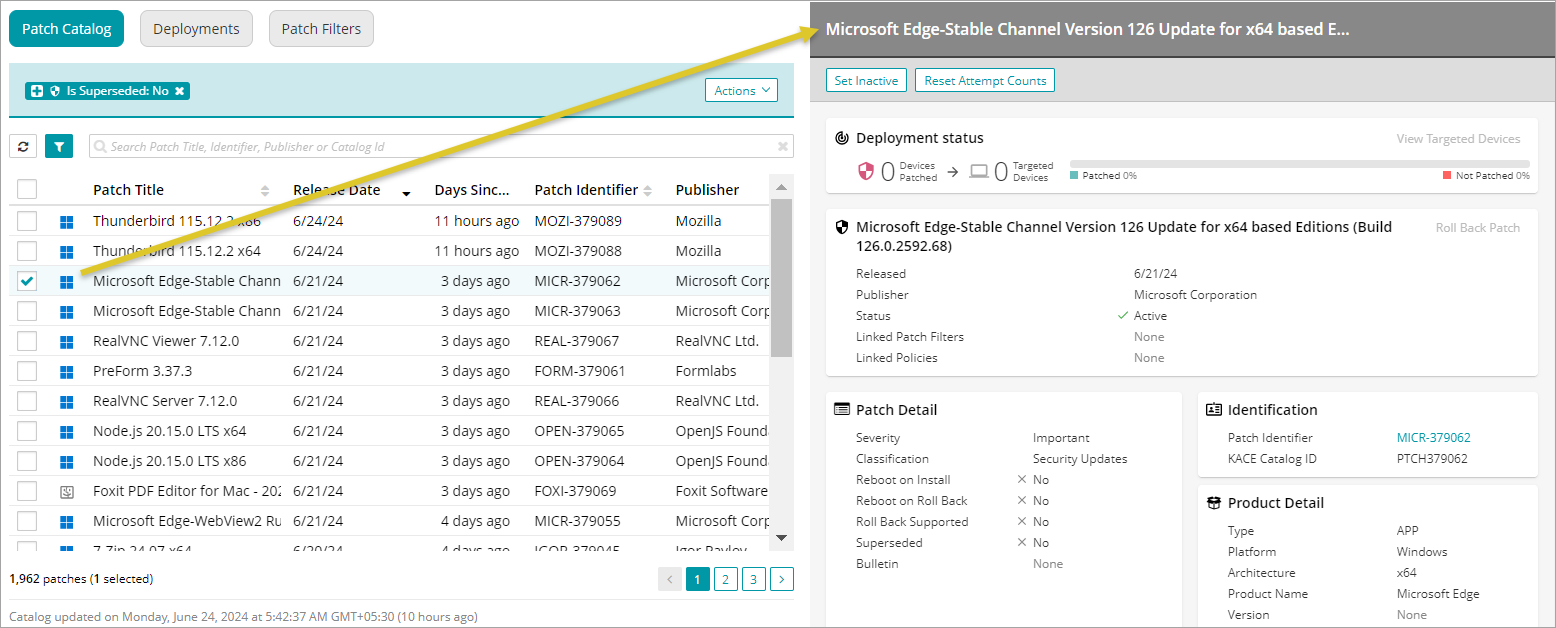
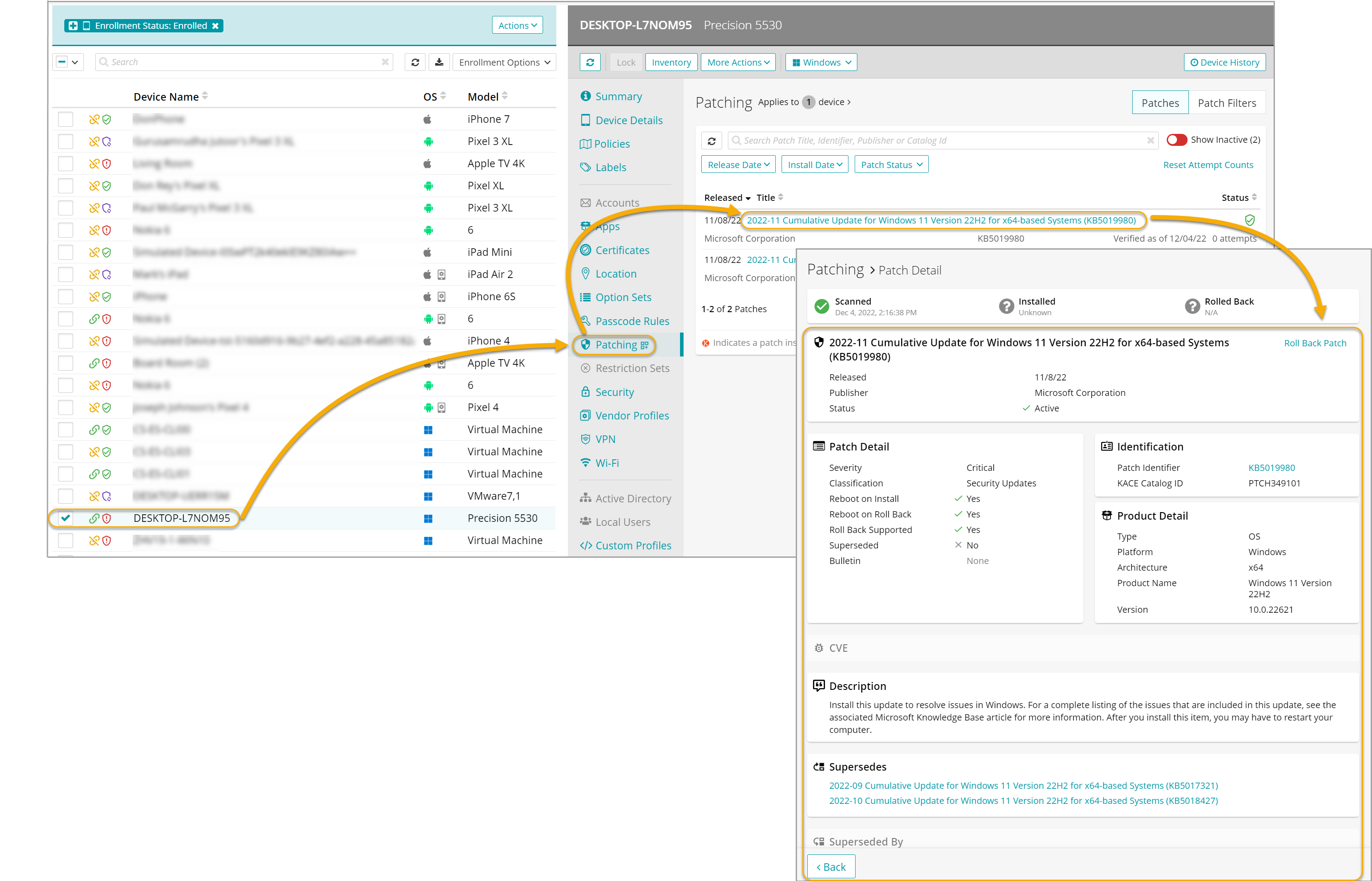
Each patch in the Patch Catalog includes some details that you can review to better understand its contents. This information tells you, for example, if the patch is associated with any patch filters or patching policies, provides the release details, patch severity, classification, and installation behavior, both the KACE Cloud's and publisher's patch IDs, accompanied with the link to the patch on the publisher's website, platform details, and whether the patch is superseded, or if it supersedes another patch.
Administrators can review patch details in the Library, or on the device where the patch is installed.
Patch details in KACE Cloud Library:
Patch details on target device:
To view patch details:
- To view patch details in the Library:
- Select the Libraries tab in top navigation.
- Click the Patching icon.
- On the Patch Catalog tab, select a patch, and review the contents on the right.
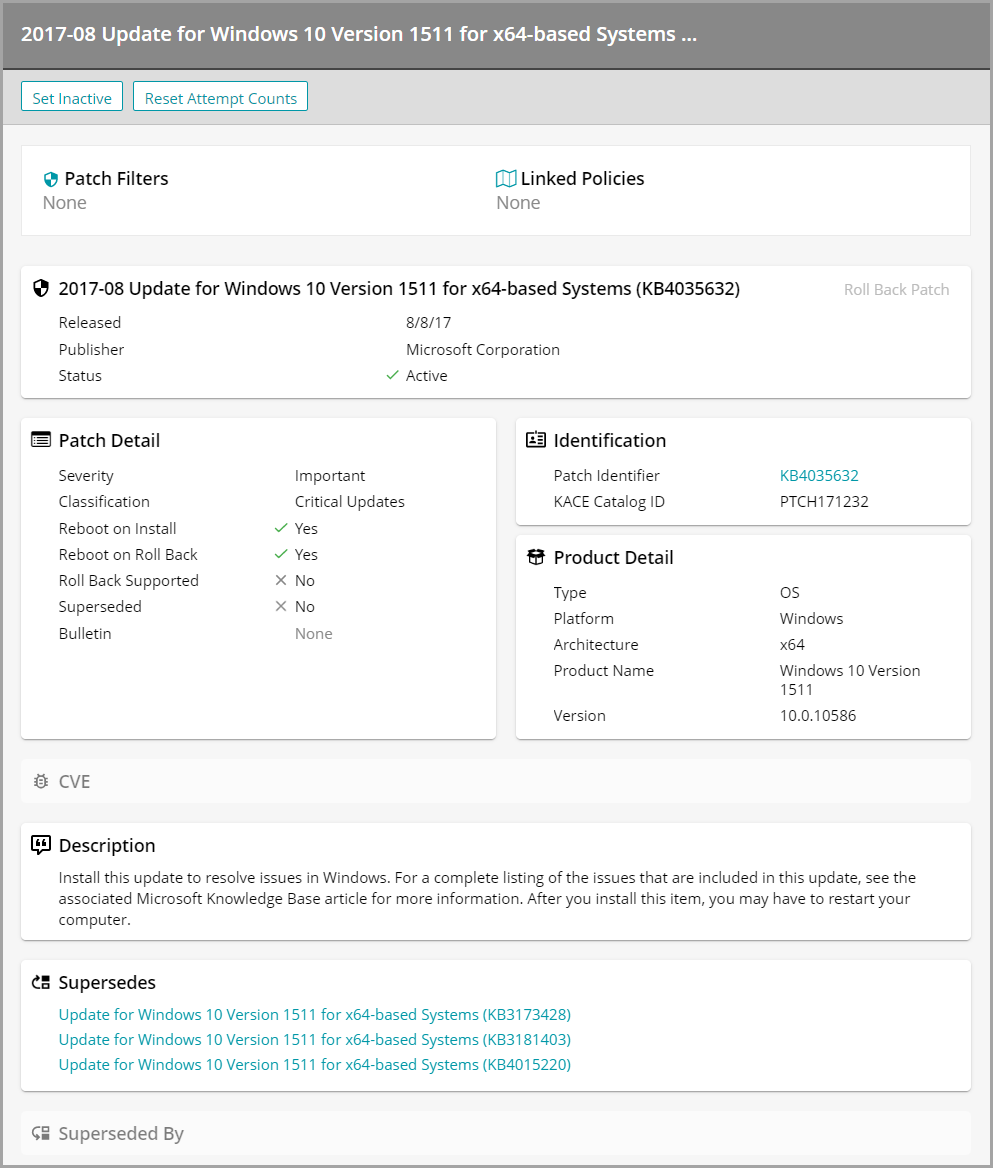
- Optional. Activate or inactivate the selected patch, or reset the scan, install, and rollback attempt counts for the selected patch, as needed.

TIP: When a patch scan, install, or rollback attempt reaches the configured maximum number of times, to reset the current attempt counts back to zero '0', click Reset Attempt Counts.
These counts are set on the main KACE Cloud Settings page, in the Patching section. For details, see Configure KACE Cloud Patching settings.

- To view patch details on a device:
- Select the Devicestab in top navigation.
- In the list of devices, select a device whose patches you want to review.
- In the device view that appears on the right, on the Patching tab, click a patch title.
- Review the Patch Detail contents that appear.
